Showing posts with label TIPS AND TRICKS. Show all posts
Showing posts with label TIPS AND TRICKS. Show all posts
How to display CPU usage on your Motorola mobile screen
01:02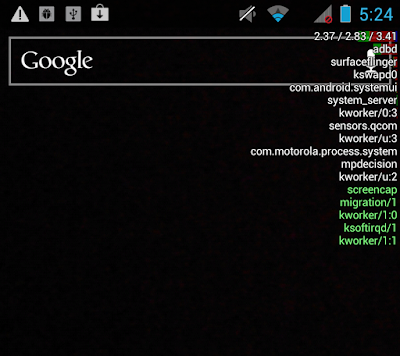

Motorola mobiles has an easy way to know the usage of their CPU. Off course Motorola has many developing options to improve their performance and much friendlier to the user. Here a small tip to show that "How to display CPU usage on your Motorola mobile screen".
Follow the steps to know how to see your your CPU usage:
Step 1: Go to settings in your mobile, and click on 'About phone'.
Step 2: Then click on 'Build number' seven times, then u will become a developer.
Step 3: Come back to 'settings' and you will able to see another option named as 'Developer options'.
Step 4: Click on 'Developer options'.
Step 5: Here you will see many options, search the required option that you have to allow the display CPU usage access named as 'Show CPU usage' which comes under MONITERING.
Step 6: ON the 'Show CPU usage' option to see your Motorola mobile CPU usage.
Now you will see your mobile CPU usage on your mobile screen.
Call of Duty: Black Ops 3 - How to Bring Back High and Ultra Settings on PC
22:34

Call of Duty: Black Ops 3 is efficiently one of the better
interesting PC port in this generation, and has a feature packed entry in far going primary-runner shooter series.
Most technical options like down-sampling, it has an ability to tend the games
on 4K display, and faster then project
that at 1080p to a great improvement of image quality and lighting there's a greater ways to reload your experience.
Although more over, a few days or so after release, the
developer arch has eliminated the ability for players with video cards that
have VRAM or 2GB RAM options in the settings. It's is an opposite move which
like taking in order that latest cards like Nvidia's GTX 960 is a card can able
to manage the high settings that has greater than 2GB video memory.
And in order you can make a try on other powerful new cards like AMD R9 FURY or the other Nvidia GeForce GTX 980 Ti are the cards that has high advanced options to get a better experience.
Follow the below site and below steps to implement how to bring back high ultra settings on PC:
(Review: Call of Duty: Black Ops 3)
1: Open your configuration file of Call of Duty: Black Ops 3. It's usually config.ini in your Steam folder, Steam\steamapps\common\Call of Duty Black Ops III\players
2: Open that config.ini with any text editor.
3: Look for "RestrictGraphicsOptions = "1" ". Change 1 to 0. It should look like Restrict Graphics Options= "0".
4: Save the file and close it.
When you start up the game you should be able to select the high ultra options with a video card with 2GB VRAM or lower. What do you do to optimize your Call of Duty: Black Ops 3 experience in PC? Let us discuss it in comments.